


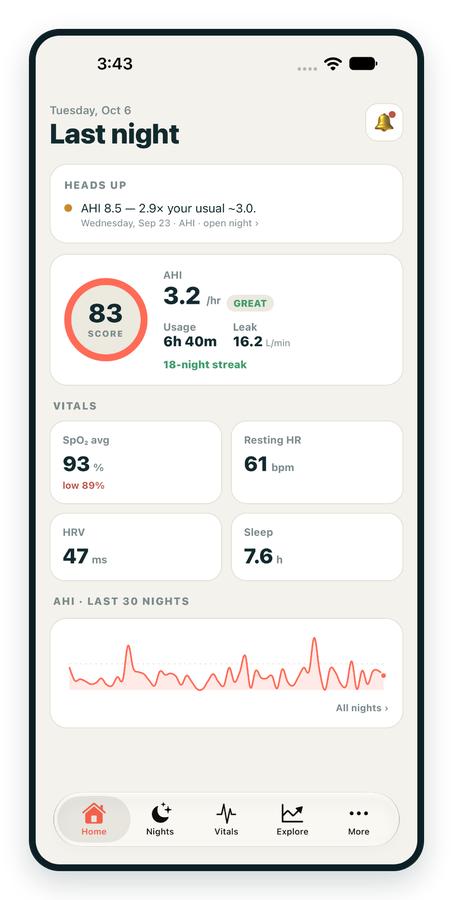
iPhone / iPhone Duo Live
Last night before you are out of bed. Apple Health vitals, Face ID.
Download on the App Store Apnealytics
Free on every plan: unlimited imports, the full dashboard and your last 30 nights.
 Compatibility checkerWill my machine work?Type your model. You get a straight answer: supported, partial, waitlist, or why not.Check my machine
 If it writes an SD card, we probably read it. ResMed AirMini has no card, so no app can read it.
Sleep Check-up
3 of 6 checks done
Six short screeners, one picture of how you sleep. Earn a milestone for each, save results and get retake reminders.
Latest milestone: Sleepiness check done
 NEWTrack your 90-day compliance windowOpen the calculator
 13 free tools. No account needed — sign in to save results and fill answers from your own CPAP data.
Last night before you are out of bed. Apple Health vitals, Face ID.
Download on the App Store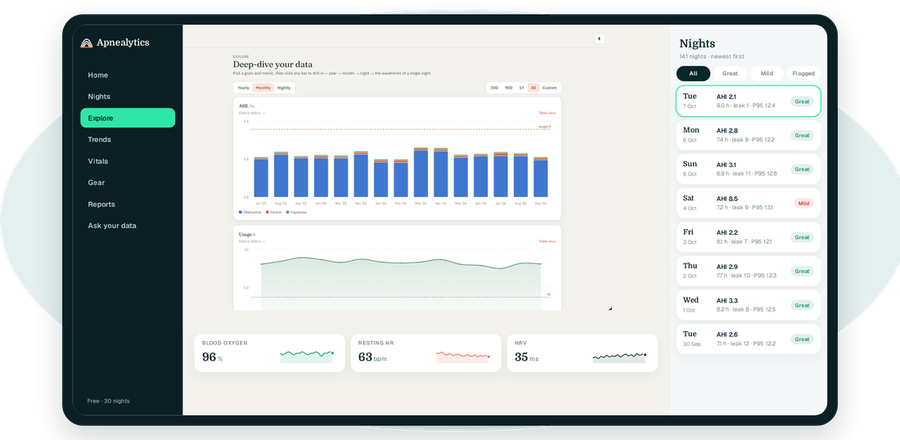
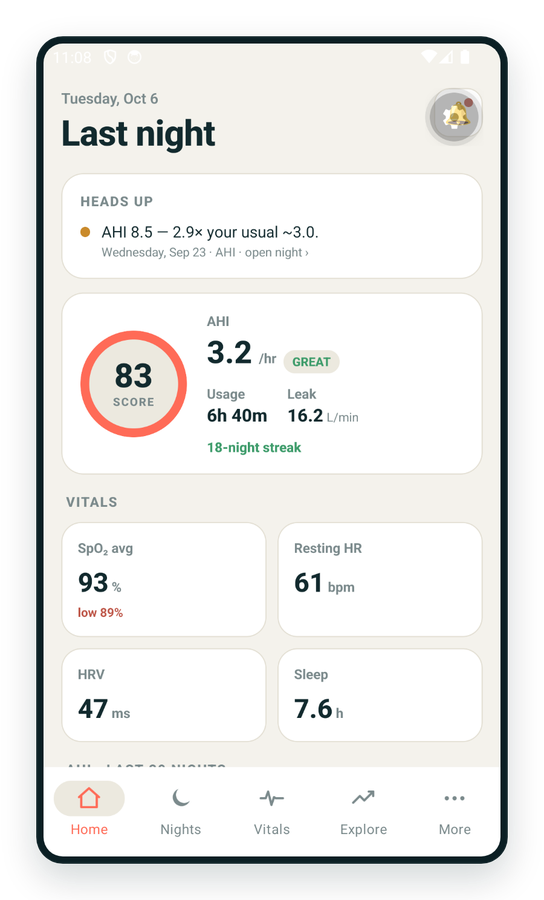
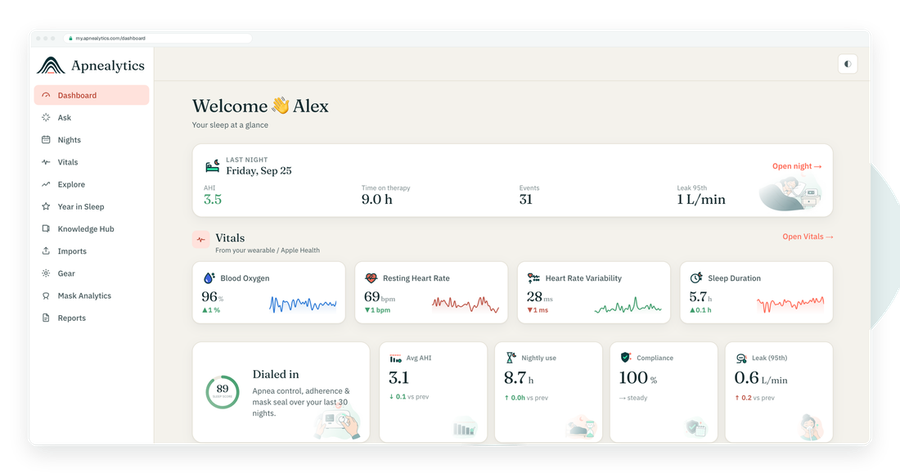
One account on every screen. Apple Watch vitals sync through Apple Health.
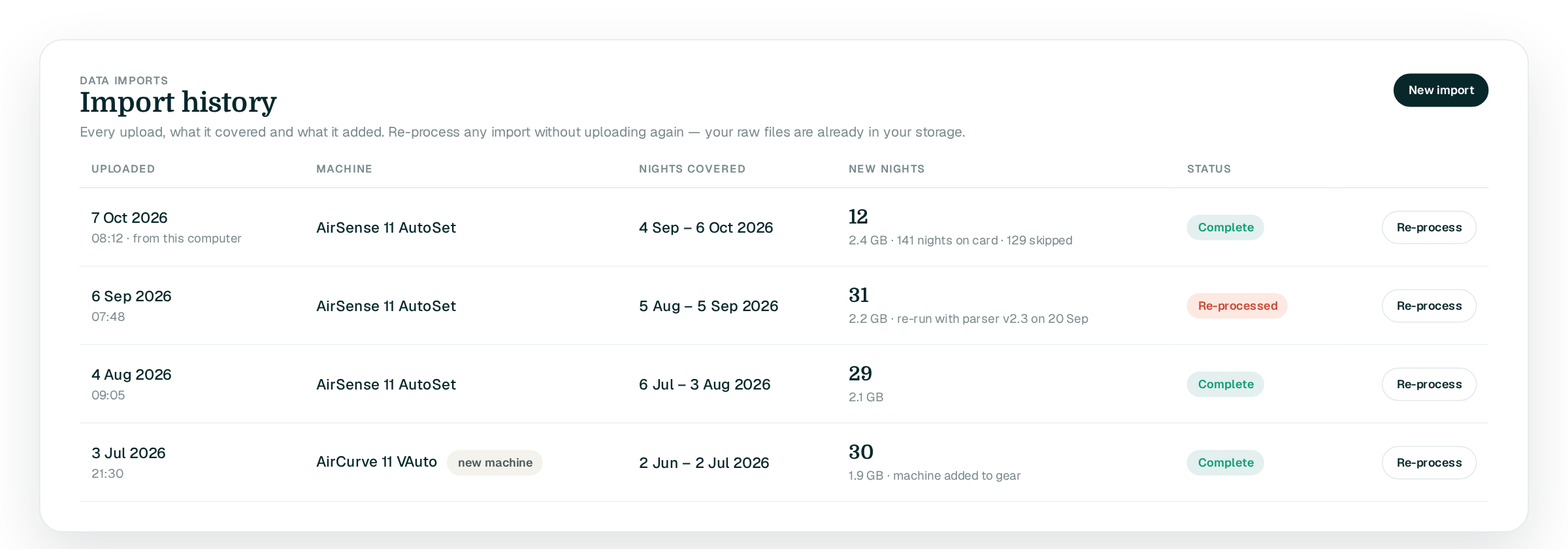
Getting started with Apnealytics takes about fifteen minutes the first time: create an account, upload your ResMed SD card on the web portal, and look at your first night. After that, a monthly upload keeps you current and the phone app does the daily checking.
A ResMed AirSense 10 or 11, AirCurve 10 or 11, or S9/Lumis machine. (Philips DreamStation 1 and 2 and Fisher & Paykel SleepStyle are supported too, and Löwenstein partly; see Works with.)
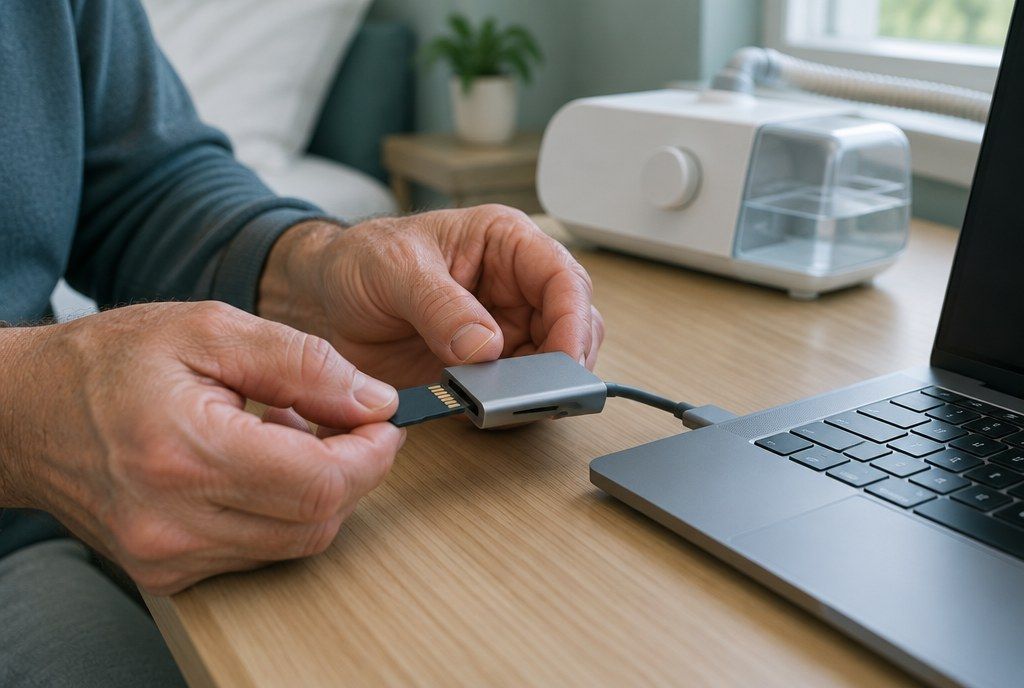
The SD card from that machine.
A computer with an SD card slot or a USB card reader. See Which SD card reader.
A modern browser: Chrome, Edge, Safari or Firefox.
Go to my.apnealytics.com and choose how to sign in: a magic link sent to your email, Google sign-in, or email and password. Verify your email when the message arrives. If it does not, see Magic-link email not arriving.
With the machine powered on and idle (not mid-session), take out the SD card. Steps with photos: AirSense 11 and AirSense 10. Put it in your reader.
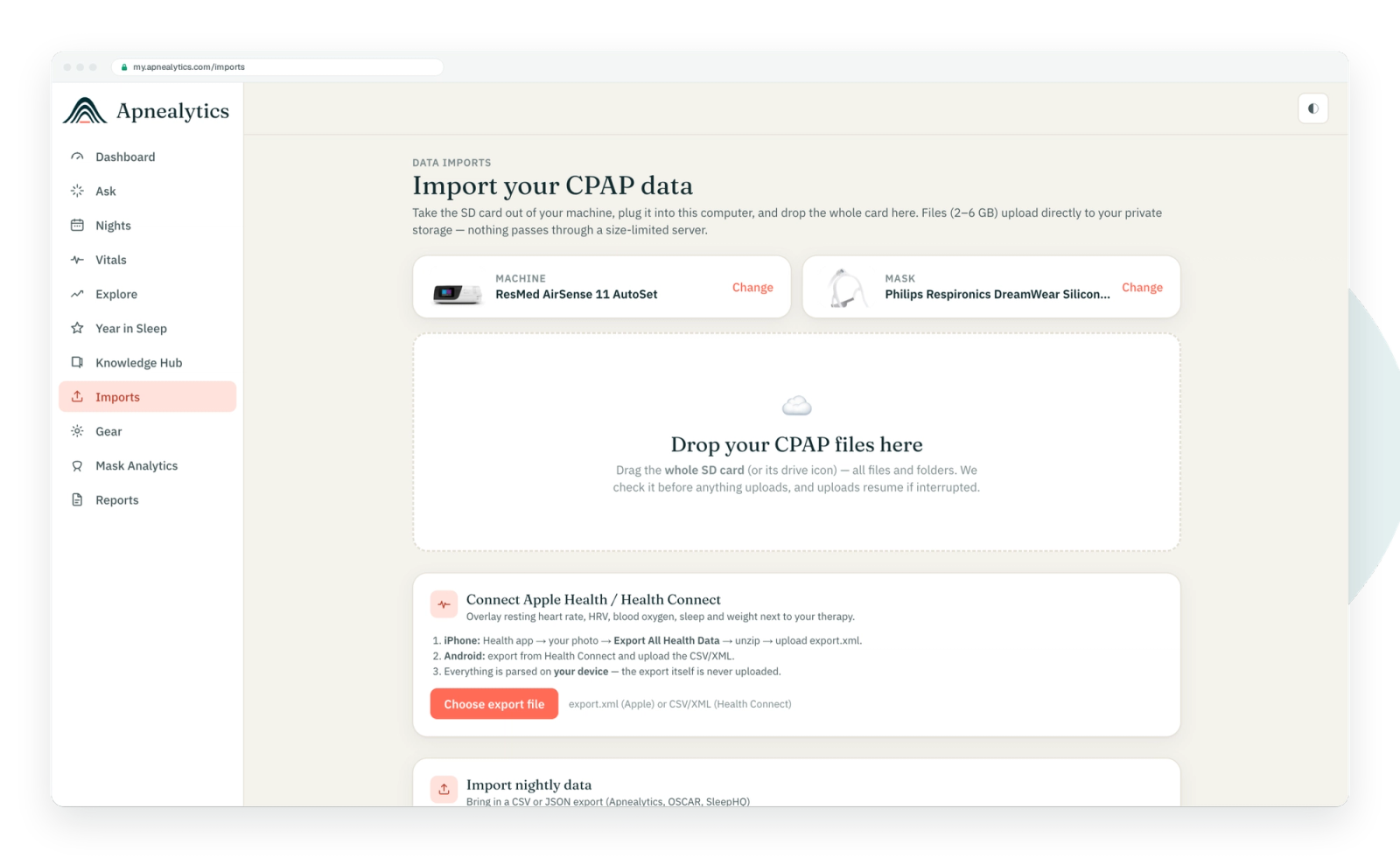
In the portal, open Import. Drag the card's top-level folder in, or click to pick it. The uploader finds STR.edf and the DATALOG folder itself. Files go directly from your browser to private storage; if your connection drops, the upload resumes. A full card can be 2 to 6 GB, so the first upload may take a while. Leave the tab open.
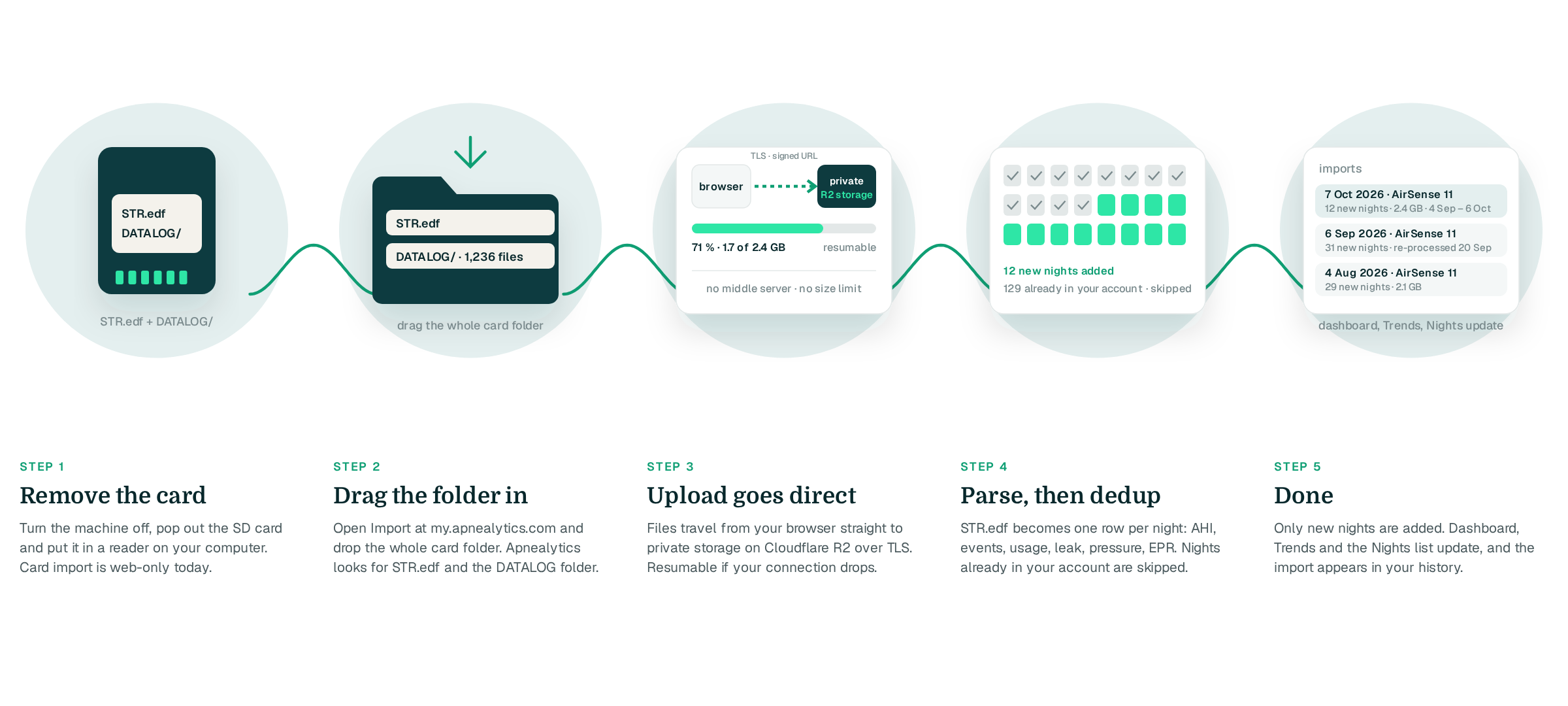
When the upload finishes, eject the card and return it to the machine. The machine needs it to record tonight.
The dashboard shows your Sleep Score, last-night AHI and its band, usage, leak P95 and pressure P95 against your set range. Open Nights to see every night on the card. Free shows the last 30 nights; Pro shows everything.
Set your machine and mask under Gear so Mask Analytics and replacement reminders work.
The iPhone and iPad app is on the App Store and the Android app is on Google Play. Sign in with the same account and your nights are already there. Connect Apple Health or Health Connect to see vitals beside therapy. Card import stays on the web.
Upload once a month, or whenever you want detail on a recent night. Re-uploads only add new nights. Turn on push nudges for gear due and usage slips; they never show health numbers on your lock screen.
No. The card stores months of nights. Upload monthly, or when you want to look at something recent. Each upload only adds nights that are not already in your account.
You can create the account and install the app from your phone, but the card upload needs a computer with a card reader. Card import is web-only today.
No. Remove it while the machine is idle, upload, and put it back. The card is standard SD; nothing is written to it during upload. Keep the write-lock tab in the unlocked position so the machine can record.
Philips DreamStation 1 and 2 and Fisher & Paykel SleepStyle are supported. Löwenstein prisma is partly supported. BMC/React Health Luna G3 and Transcend are on the waitlist. Check the compatibility checker.
Write to info@apnealytics.com with what you tried and we will get back to you within a day.
 DashboardSleep Score, AHI band, leak and pressure
 Trends & historyA year down to a night
 Breath-by-breath viewerAirflow, pressure, leak tracesPro
 SpO₂ overlayOximeter data on the same nightPro
 Pressure insightsP95, set range, EPR and ramp
 SD card importDrop the card folder, only new nights added
 Mask fit & gearWhich mask actually seals
 Ask your dataPlain-English questions, your own AI keyBYOK
 Year in SleepYour therapy year in one storyNew
 Compliance reportFinds the qualifying window for youPro
 Share with your doctorRead-only, revocable links
 Companion appiPhone, iPad and Android
 Privacy & securityYour data, locked to you
 ResMed AirSense 10 & 11Supported
 ResMed AirCurve 10 & 11 VAutoSupported
 ResMed S9 / LumisSupported
 Philips DreamStation 1 & 2Supported
 Fisher & Paykel SleepStyleSupported
 Löwenstein / DeVilbissPartial
 React Health Luna G3Waitlist
 Transcend MicroWaitlist
 Full face masksFit, leak signature, Mask Analytics
 Nasal masksOver-nose and cradle styles
 Nasal pillowsMinimal-contact fit tips
 Wellue O2RingSupported
 Contec CMS50 familySupported
 Apple Health / Health ConnectResting HR, HRV, SpO₂, sleepSupported
 What is AHI?The apnea-hypopnea index, explained
 What is a good AHI on CPAP?
 CPAP leak rate explained
 Pressure settings explained
 Reading CPAP waveformsAll 14 explainers
 Apnealytics vs SleepHQ
 Apnealytics vs OSCAR
 Apnealytics vs myAir
 Apnealytics vs DreamMapper
 SleepHQ vs OSCARBest CPAP apps in 2026
 How to read CPAP dataStart here: six numbers, in order
 Read your CPAP SD card
 Share data with your doctorChoosing a CPAP mask
 Travel with CPAPAll guides
 Mask finderSeven questions, a ranked mask typeYour data
 Machine finderA two-machine shortlist for your prescription
 iPhone / iPhone DuoLast night before you are out of bed. Apple Health vitals, Face ID.Live
 iPadSame universal app, side-by-side panes and full-width waveforms.Live
 AndroidPhones, tablets and foldables, with Health Connect built in.Live
 Web portalWhere your SD card goes. Every chart, report and setting.Live

