


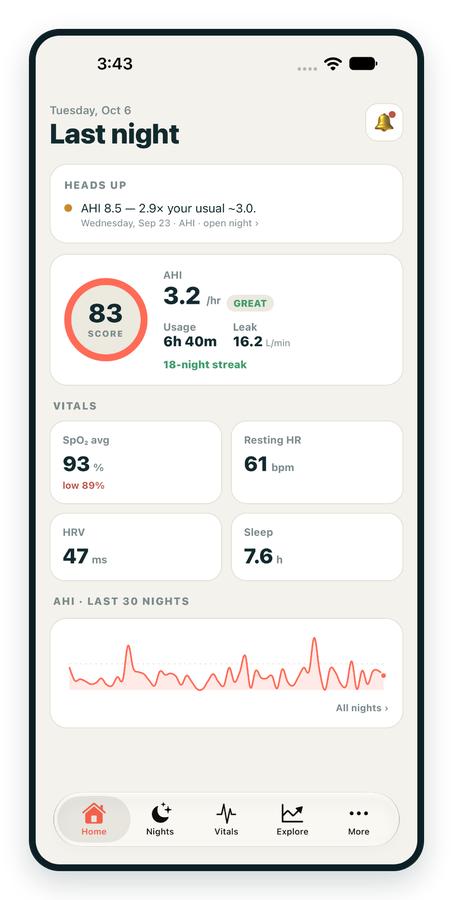
iPhone / iPhone Duo Live
Last night before you are out of bed. Apple Health vitals, Face ID.
Download on the App Store Apnealytics
Free on every plan: unlimited imports, the full dashboard and your last 30 nights.
 Compatibility checkerWill my machine work?Type your model. You get a straight answer: supported, partial, waitlist, or why not.Check my machine
 If it writes an SD card, we probably read it. ResMed AirMini has no card, so no app can read it.
Sleep Check-up
3 of 6 checks done
Six short screeners, one picture of how you sleep. Earn a milestone for each, save results and get retake reminders.
Latest milestone: Sleepiness check done
 NEWTrack your 90-day compliance windowOpen the calculator
 13 free tools. No account needed — sign in to save results and fill answers from your own CPAP data.
Last night before you are out of bed. Apple Health vitals, Face ID.
Download on the App Store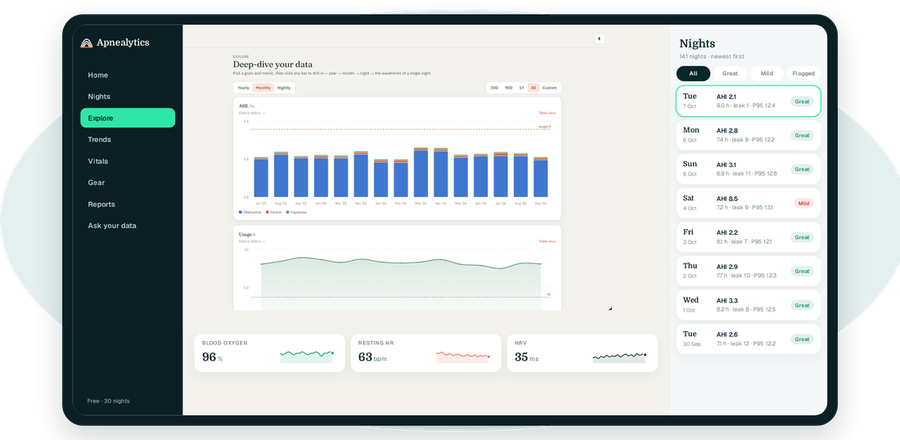
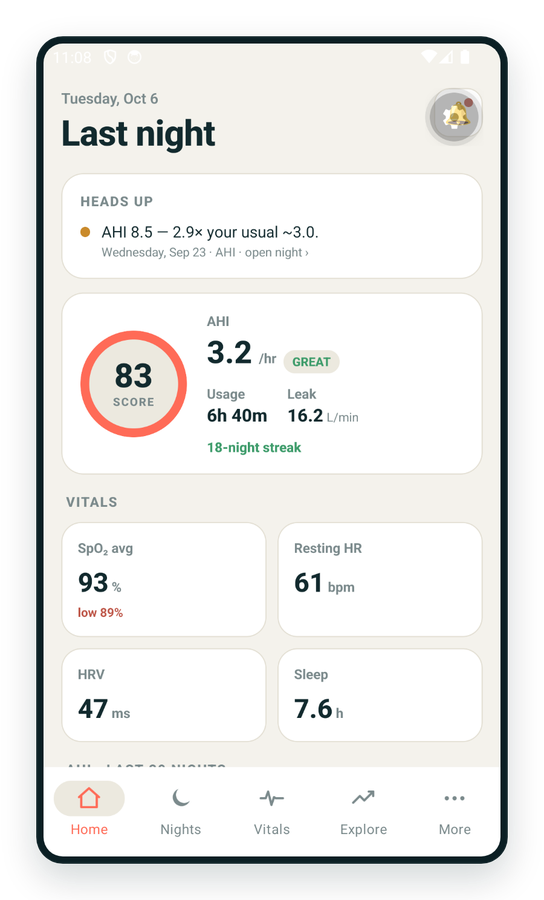
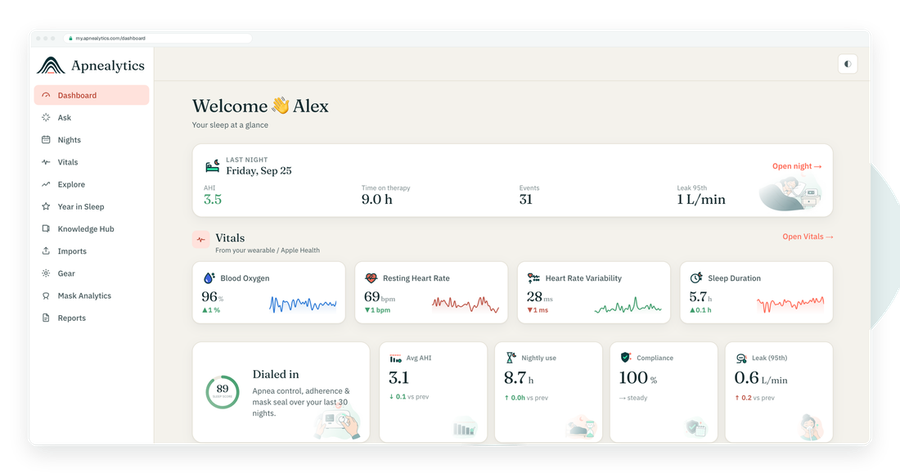
One account on every screen. Apple Watch vitals sync through Apple Health.
The AirSense 10 SD card is behind a small flip-open cover on the left side of the machine, toward the back, as you face the display. The same steps apply to the AirCurve 10. Remove the card while the machine is idle, upload on the web portal, and return it before you sleep.
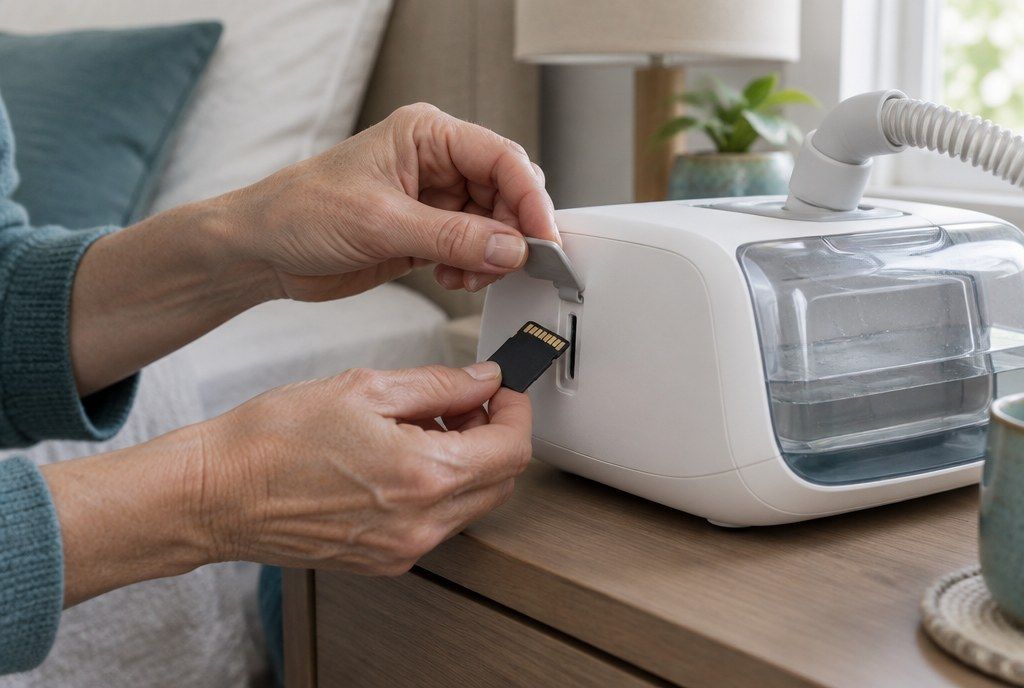
Face the display. On the left side, roughly level with the humidifier tub release, there is a flat cover that pivots open. The SD card sits in the slot behind it.
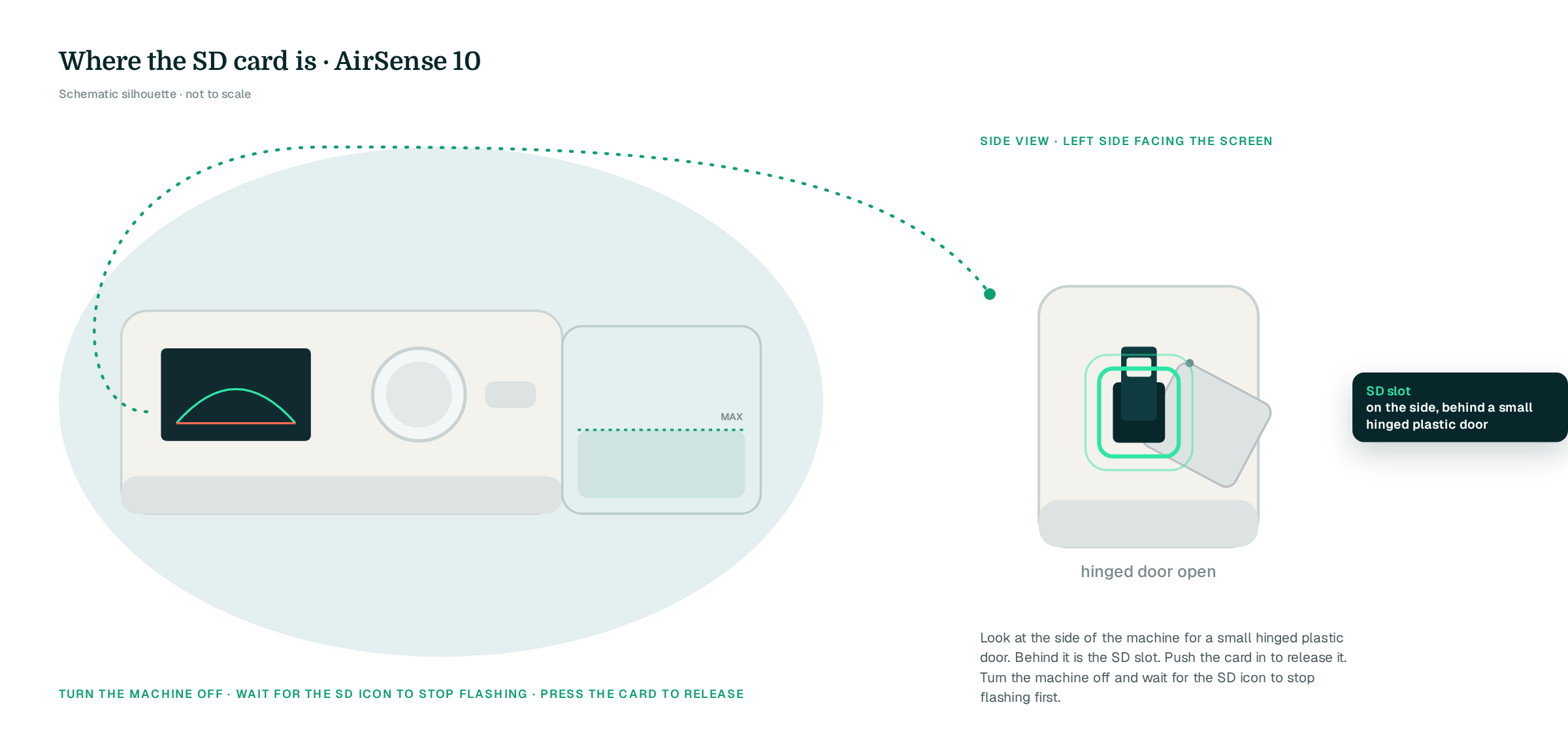
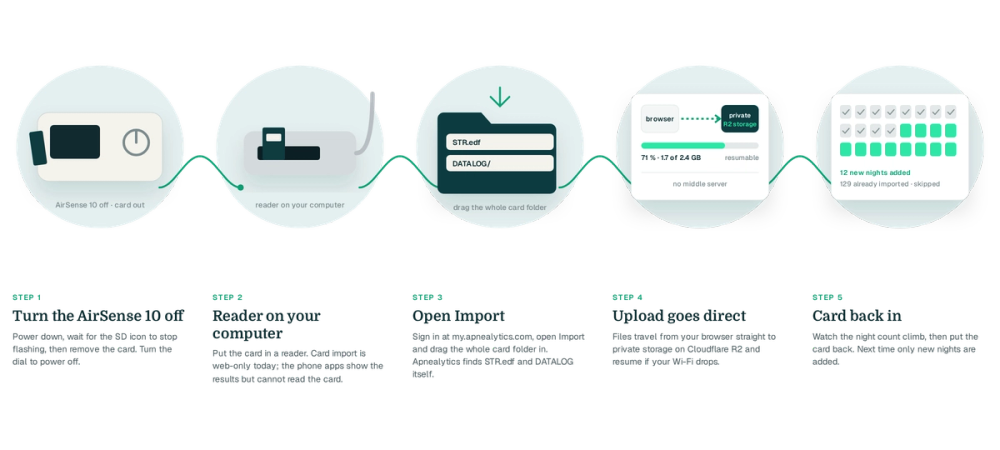
If the display shows the SD card icon flashing, the machine is still writing. Wait until it stops.
It pivots down and stays attached.
until it clicks, then let go. It pops out slightly.
by the edges.
Any standard USB SD reader or a laptop slot works. See Which SD card reader.
Open Import and drop in the card's folder. The upload is read-only and resumable.
Eject from your computer, slide the card into the slot contacts-first until it clicks, and close the cover.
Look at the long edge of the card. The small slider must be away from the LOCK position. A locked card means the machine records nothing tonight, and you will see a missing night at your next upload.
Some AirSense 10 machines have been in service for years and the card with it. If the machine starts reporting card errors, or uploads show corrupted days, the card may be wearing out. A replacement from ResMed, or a reputable brand-name SD card, fixes it. Upload your current card first so nothing is lost.
Monthly is enough for most people. Upload sooner if you have changed pressure, EPR or masks and want to see the effect. Re-uploads only add new nights, so there is no penalty for uploading often.
Card not recognised by the machine after reinsertion: remove, check orientation, reinsert until it clicks.
Missing recent night: see No data for last night.
Upload stalls: see Upload fails or stalls.
On the left side of the machine as you face the display, toward the back, behind a small flip-open cover. Press the card in to release it. The AirCurve 10 uses the same housing and the same slot.
Yes, when therapy is off and the machine is idle. Do not remove it while the card icon on the display is flashing; that means the summary for the night is still being written. Wait until it is steady, then press and pull.
It runs, but the detailed data Apnealytics reads is written to the card. Without it you get a night with no detail. Return the card right after uploading.
Generally yes, with a standard SD card. Back up by uploading the old card first. Apnealytics dedups, so if the new card later holds overlapping nights, they will not be counted twice.
Write to info@apnealytics.com with what you tried and we will get back to you within a day.

 DashboardSleep Score, AHI band, leak and pressure
 Trends & historyA year down to a night
 Breath-by-breath viewerAirflow, pressure, leak tracesPro
 SpO₂ overlayOximeter data on the same nightPro
 Pressure insightsP95, set range, EPR and ramp
 SD card importDrop the card folder, only new nights added
 Mask fit & gearWhich mask actually seals
 Ask your dataPlain-English questions, your own AI keyBYOK
 Year in SleepYour therapy year in one storyNew
 Compliance reportFinds the qualifying window for youPro
 Share with your doctorRead-only, revocable links
 Companion appiPhone, iPad and Android
 Privacy & securityYour data, locked to you
 ResMed AirSense 10 & 11Supported
 ResMed AirCurve 10 & 11 VAutoSupported
 ResMed S9 / LumisSupported
 Philips DreamStation 1 & 2Supported
 Fisher & Paykel SleepStyleSupported
 Löwenstein / DeVilbissPartial
 React Health Luna G3Waitlist
 Transcend MicroWaitlist
 Full face masksFit, leak signature, Mask Analytics
 Nasal masksOver-nose and cradle styles
 Nasal pillowsMinimal-contact fit tips
 Wellue O2RingSupported
 Contec CMS50 familySupported
 Apple Health / Health ConnectResting HR, HRV, SpO₂, sleepSupported
 What is AHI?The apnea-hypopnea index, explained
 What is a good AHI on CPAP?
 CPAP leak rate explained
 Pressure settings explained
 Reading CPAP waveformsAll 14 explainers
 Apnealytics vs SleepHQ
 Apnealytics vs OSCAR
 Apnealytics vs myAir
 Apnealytics vs DreamMapper
 SleepHQ vs OSCARBest CPAP apps in 2026
 How to read CPAP dataStart here: six numbers, in order
 Read your CPAP SD card
 Share data with your doctorChoosing a CPAP mask
 Travel with CPAPAll guides
 Mask finderSeven questions, a ranked mask typeYour data
 Machine finderA two-machine shortlist for your prescription
 iPhone / iPhone DuoLast night before you are out of bed. Apple Health vitals, Face ID.Live
 iPadSame universal app, side-by-side panes and full-width waveforms.Live
 AndroidPhones, tablets and foldables, with Health Connect built in.Live
 Web portalWhere your SD card goes. Every chart, report and setting.Live

